> ## Documentation Index
> Fetch the complete documentation index at: https://docs.flashdocs.com/llms.txt
> Use this file to discover all available pages before exploring further.
# Custom Deck Generation Walkthrough
> In this page, we explore various configurations and ways to control your custom deck creation.
Creating a custom deck is perfect for use cases where you want to create a presentation with a variable number of slides (depending on the prompt). If you have a repeated deck creation use case, where you want the same set slides but with content tailored to the prompt, you should create a deck from a `template`.
Deck Generation Quickstart. If you want to see the minimal steps to generate slides: [Quickstart](https://docs.flashdocs.com/quickstart)
Configure Custom Branding. If you want to configure your own branding via FlashDocs *templates* and FlashDocs *libraries*: [Configure](https://docs.flashdocs.com/configure)
Before we get into all of the cool features and parameters FlashDocs provides for deck generation, we should given a brief overview of how slides are created
# Overview of Custom Deck Generation Process
# Specify a FlashDocs Slide Library
You can view and manage all of your FlashDocs Libraries and Templates at [dash.flashdocs.ai](https://dash.flashdocs.ai)
If you have multiple libraries (ex: dark vs. light theme or Google Slides vs. PPTX or external facing vs. internal facing branding), you may want to specify which source slides to generate your deck from.
The first step is seeing which *library* FlashDocs documents you have available. You can use the API to programmatically view your slides ([API to list documents](https://docs.flashdocs.com/api-reference/flashdocs-documents/list-documents)), but in this demo, we will use the dashboard:
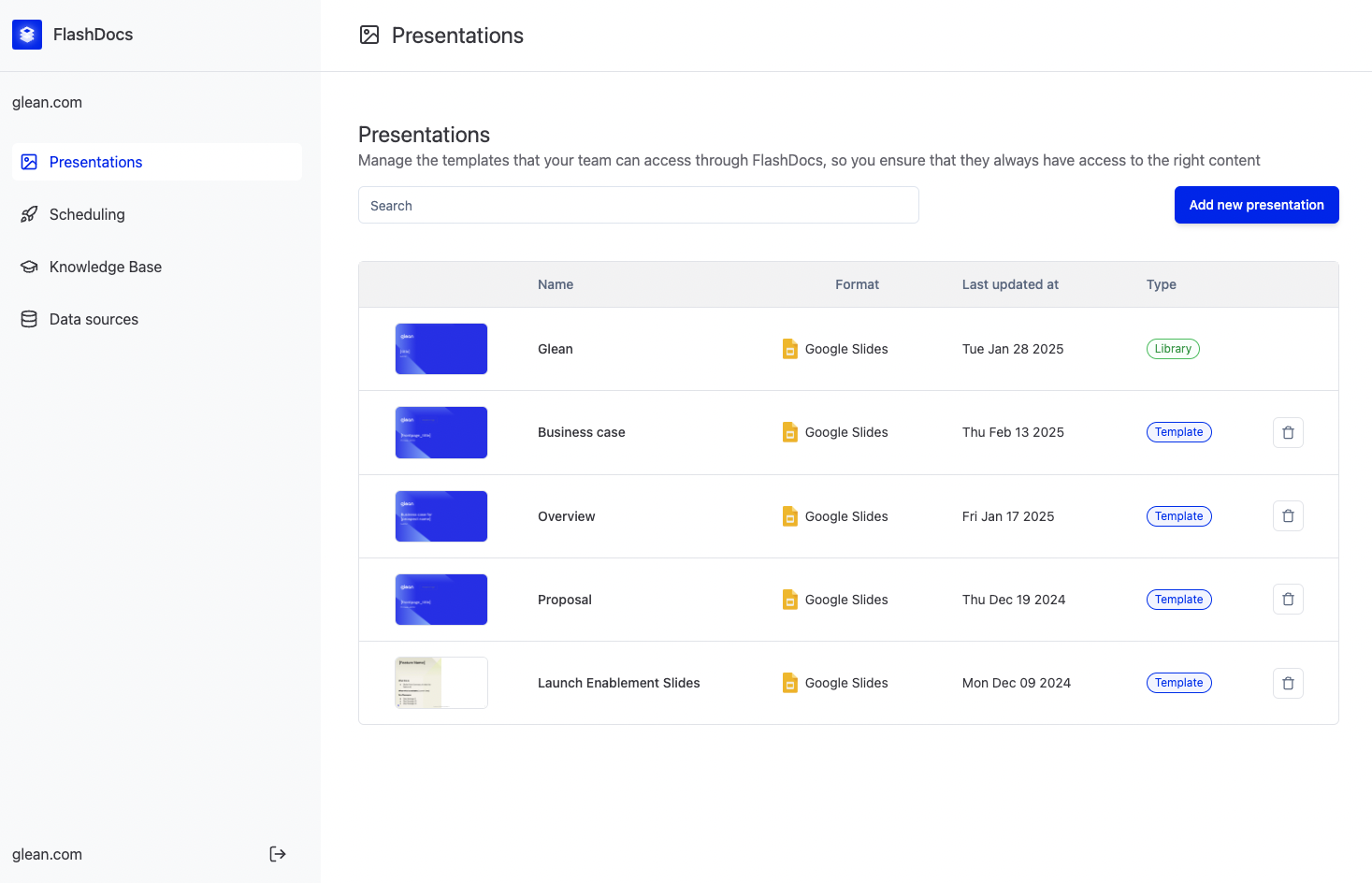
For this organiation, we can see that there is only 1 *library* document - the document in the first row.
You can always delete, create, or edit FlashDocs documents in the dashboard.
To specify a *library* document to use in a deck generation request, we need to identify the `id` of the document.
If you click on any FlashDocs base presentation, you can find the document `id` by viewing the URL.
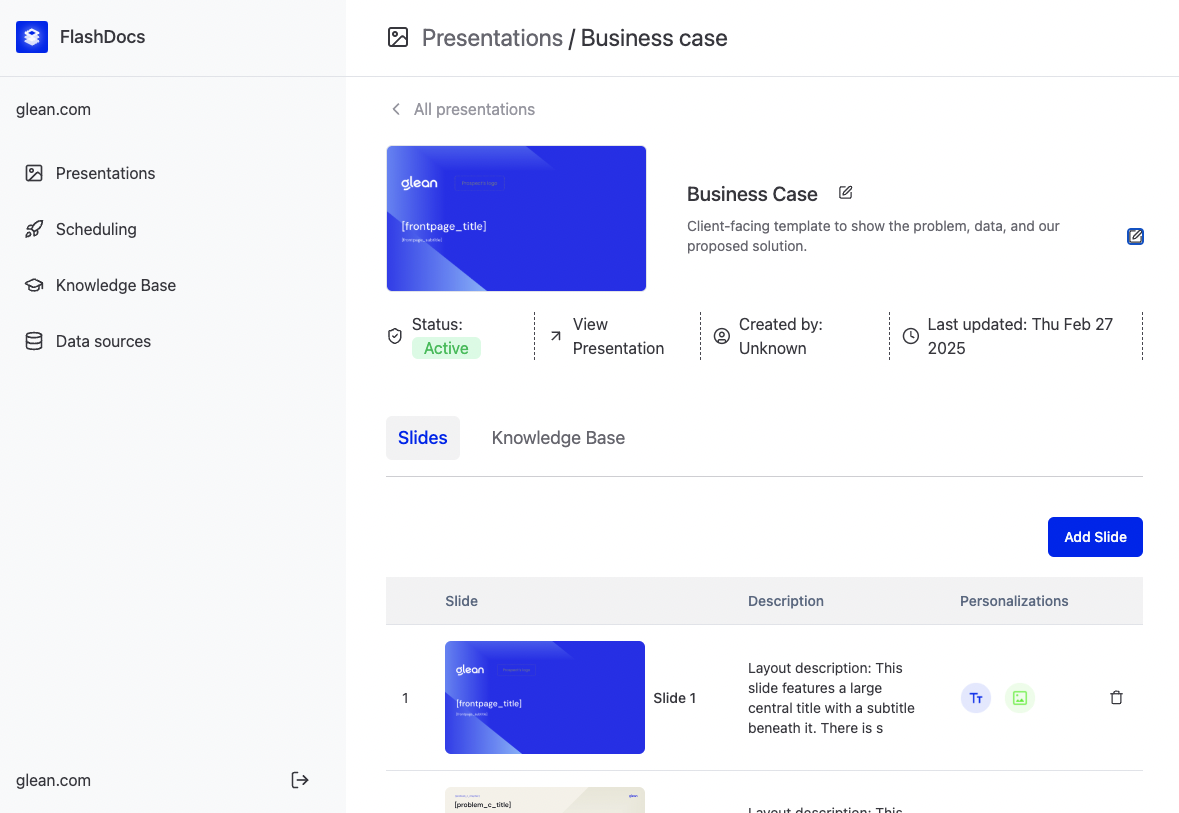
Note that this document is a *library* type (says library under the presentation name). If the URL for this page is [`https://dash.flashdocs.ai/document/abc0d0d0-abcd-4141-abc0-abc010101#Slides`](https://dash.flashdocs.ai/document/abc0d0d0-abcd-4141-abc0-abc010101#Slides), then the `id` of the document is the portion between document and #Slides: `abc0d0d0-abcd-4141-abc0-abc010101`.
Now that we have the `id` of the *library* FlashDocs document we want our custom deck to come from, we can include the `source_document_id` in the generate deck request:
```bash
curl --request POST \
--url https://api.flashdocs.ai/v3/generate/deck \
--header 'Authorization: Bearer ' \
--header 'Content-Type: application/json' \
--data '{
"prompt": "Make a slide deck explaining why programmatic slide deck creation is a game changer for my business. Describe all of the new features we can add.",
"source_document_id": "abc0d0d0-abcd-4141-abc0-abc010101"
}'
```
### How does this affect the generation of the deck?
Specifying the `source_document_id` affects step 4 in the deck generation process. When the system identifies the most relevant slide layout for each slide in the outline, it chooses a slide layout from the set of slides in the `source_document_id`.
***
# Number of Slides
## Description
The **number\_slides** parameter allows you to specify the exact number of slides you want in the generated presentation. If omitted, the system automatically estimates an appropriate slide count based on the prompt. (Note: This parameter should not be used if the `source_document_id` points to a *template* document.)
```bash
curl --request POST \
--url https://api.flashdocs.ai/v3/generate/deck \
--header 'Authorization: Bearer ' \
--header 'Content-Type: application/json' \
--data '{
"prompt": "Explain the impact of renewable energy on modern businesses.",
"number_slides": 5,
"source_document_id": "abc0d0d0-abcd-4141-abc0-abc010101"
}'
```
## Generation Process Impact
The **number\_slides** parameter directly affects **Step 2: Slide Count**. When provided, the system bypasses its automatic estimation and uses the specified number to generate the presentation. Under the hood, this parameter informs the algorithm to tailor the outline and distribute content evenly across the defined number of slides.
***
# Outline
## Description
The **outline** parameter lets you supply a custom array of instructions that define both the content and layout for each slide. This is particularly useful for custom decks where you want to control slide-by-slide details. If an outline is not provided, the system automatically generates one based on the prompt.
Instead of `layout_instruction`, you can also directly provide `slide_id`, which is the `id` of the slide in a FlashDocs document. You can view slide IDs in this request: [https://docs.flashdocs.com/api-reference/flashdocs-documents/get-document-full-data](https://docs.flashdocs.com/api-reference/flashdocs-documents/get-document-full-data), with
```bash
curl --request POST \
--url https://api.flashdocs.ai/v3/generate/deck \
--header 'Authorization: Bearer ' \
--header 'Content-Type: application/json' \
--data '{
"prompt": "Discuss emerging technology trends in 2025.",
"outline": [
{
"layout_instruction": "Title slide with bold graphics",
"content_instruction": "Introduce the topic and set the stage."
},
{
"layout_instruction": "Slide with 3 sections",
"content_instruction": "Highlight the top 3 emerging trends."
}
],
"source_document_id": "abc0d0d0-abcd-4141-abc0-abc010101"
}'
```
## Generation Process Impact
The **outline** parameter influences **Step 3: Outline Generation**. When provided, it overrides the system’s default outline generation process, guiding the creation of slide layouts and content structure. Internally, the provided instructions are mapped to the corresponding slide placeholders to ensure that each slide adheres to your specific design and content requirements.
***
# Audience Domain
## Description
The **audience\_domain** parameter is used to specify the domain or website of the target audience. This is particularly useful for populating image placeholders with the appropriate company logos (using the `audience-company-logo` category) when the deck is designed for an external audience. If not provided, the system attempts to predict a suitable domain.
```bash
curl --request POST \
--url https://api.flashdocs.ai/v3/generate/deck \
--header 'Authorization: Bearer ' \
--header 'Content-Type: application/json' \
--data '{
"prompt": "Showcase our innovative product suite to potential clients.",
"audience_domain": "apple.com",
"source_document_id": "abc0d0d0-abcd-4141-abc0-abc010101"
}'
```
## Generation Process Impact
The **audience\_domain** parameter affects the **Generation** step (Step 5). When set, the system leverages this information to look up and assign the correct branding assets (such as company logos) to image placeholders. Under the hood, this triggers a lookup for image assets corresponding to the specified domain, ensuring that the visual elements align with the intended audience’s identity.
***
# Presentation Name
## Description
The **presentation\_name** parameter allows you to define a custom filename for the generated presentation deck. If this parameter is omitted, the system will automatically generate a name based on the provided prompt.
```bash
curl --request POST \
--url https://api.flashdocs.ai/v3/generate/deck \
--header 'Authorization: Bearer ' \
--header 'Content-Type: application/json' \
--data '{
"prompt": "Create a presentation on climate change and sustainability initiatives.",
"presentation_name": "Climate Change Initiatives 2025",
"source_document_id": "abc0d0d0-abcd-4141-abc0-abc010101"
}'
```
## Generation Process Impact
The **presentation\_name** parameter primarily influences the final output of the deck generation process. While it does not affect the content or slide structure, it determines the filename and title of the resulting deck. Internally, once all slides have been generated, this parameter is applied to name the file, making it easier to identify and share.
***
# Google Slides Add Editors
## Description
The **google\_document\_editors** parameter is an array of email addresses that will receive edit access to the generated Google Slides presentation. This feature supports collaborative editing and is only applicable to presentations generated in Google Slides format; it is ignored for PowerPoint presentations.
```bash
curl --request POST \
--url https://api.flashdocs.ai/v3/generate/deck \
--header 'Authorization: Bearer ' \
--header 'Content-Type: application/json' \
--data '{
"prompt": "Prepare a collaborative project update deck.",
"google_document_editors": ["alice@example.com", "bob@example.com"],
"source_document_id": "abc0d0d0-abcd-4141-abc0-abc010101"
}'
```
## Generation Process Impact
The **google\_document\_editors** parameter is applied once the deck has been fully generated. It automates the sharing process by interfacing with the Google Slides API to grant the specified email addresses edit permissions on the generated presentation. This ensures seamless collaboration, allowing team members to make further edits directly in the document.